


Blooket is a brand-new trivia-style game primarily targeted towards educators and students but can be enjoyed by everyone. Blooket allows you to answer fun trivia about anything you can think of and collect Blooks, also known as cute animal blocks, while doing it.
Blooket not only motivates students to answer by allowing them to build their collection, but it also offers several unique game modes that change the way traditional classroom trivia operates, much like Netflix's Trivia Quest. Though there is a bit of a learning curve to becoming acquainted with Blooket, its unique appeal can't be overlooked.
How To Create Your Own Blooket
Create Trivia Based On Any Topic


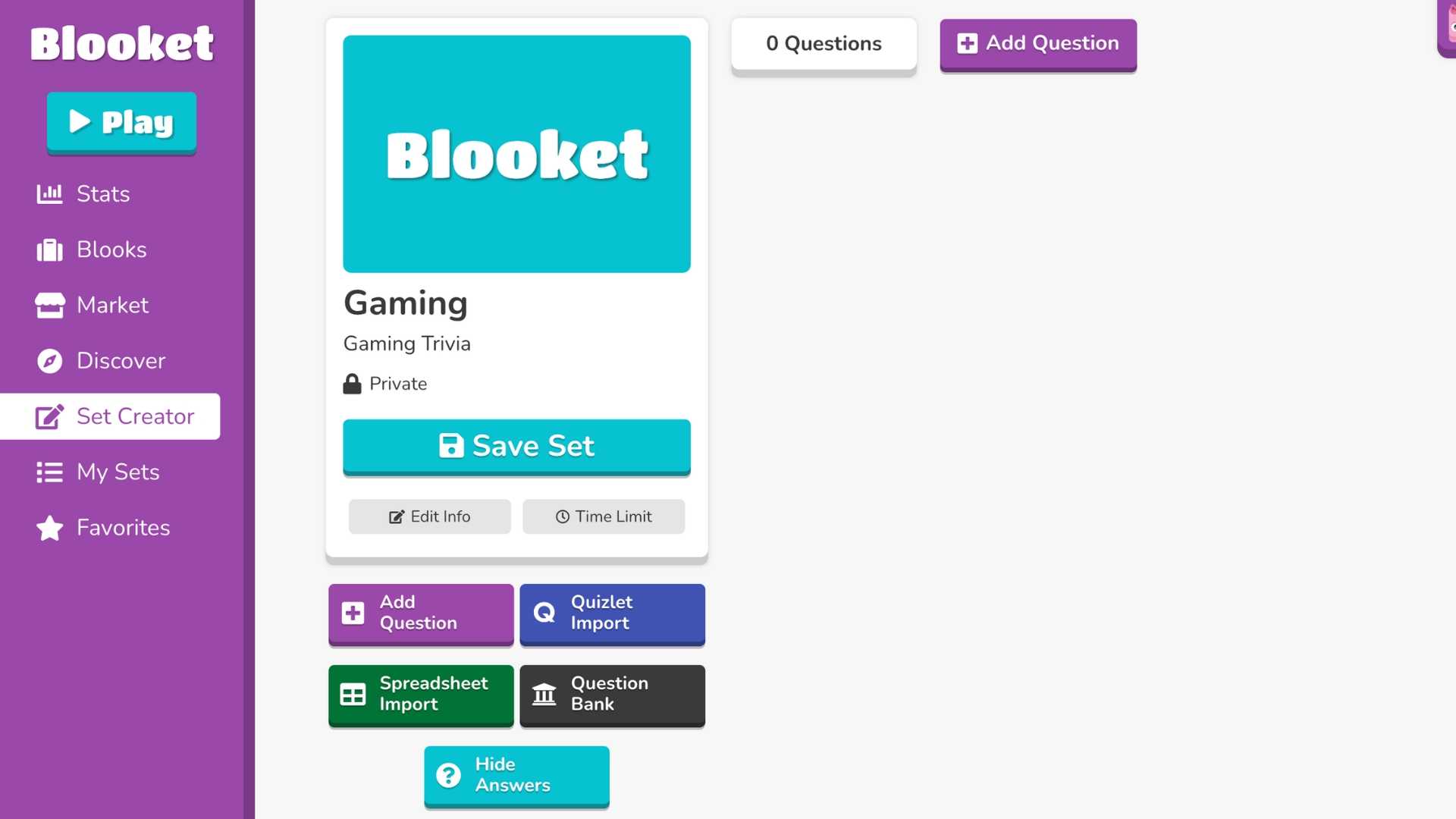
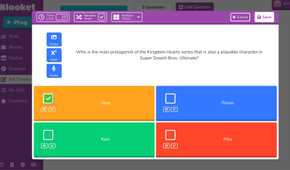
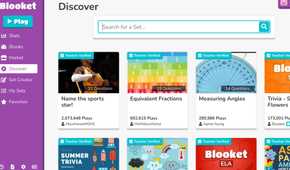
Unlike Netflix's Trivia Quest, educators or hosts in general can use the discovery feature to find Blooket sets already designed and uploaded by others. You can also make your own. To begin, when signing up for Blooket, you must use the teacher option.
This will allow you to create your own Blooket instead of just participating, which is what the student tab is for. Once you've created your account, simply click the Create tab at the top left of your screen.
You can create a question set from the student view of Blooket, but it is a little more hidden. Instead of having the bold create button like the Teacher's view, you will need to look through your menu for the Set Creator option. This will bring you to the same page on the Teacher's account.
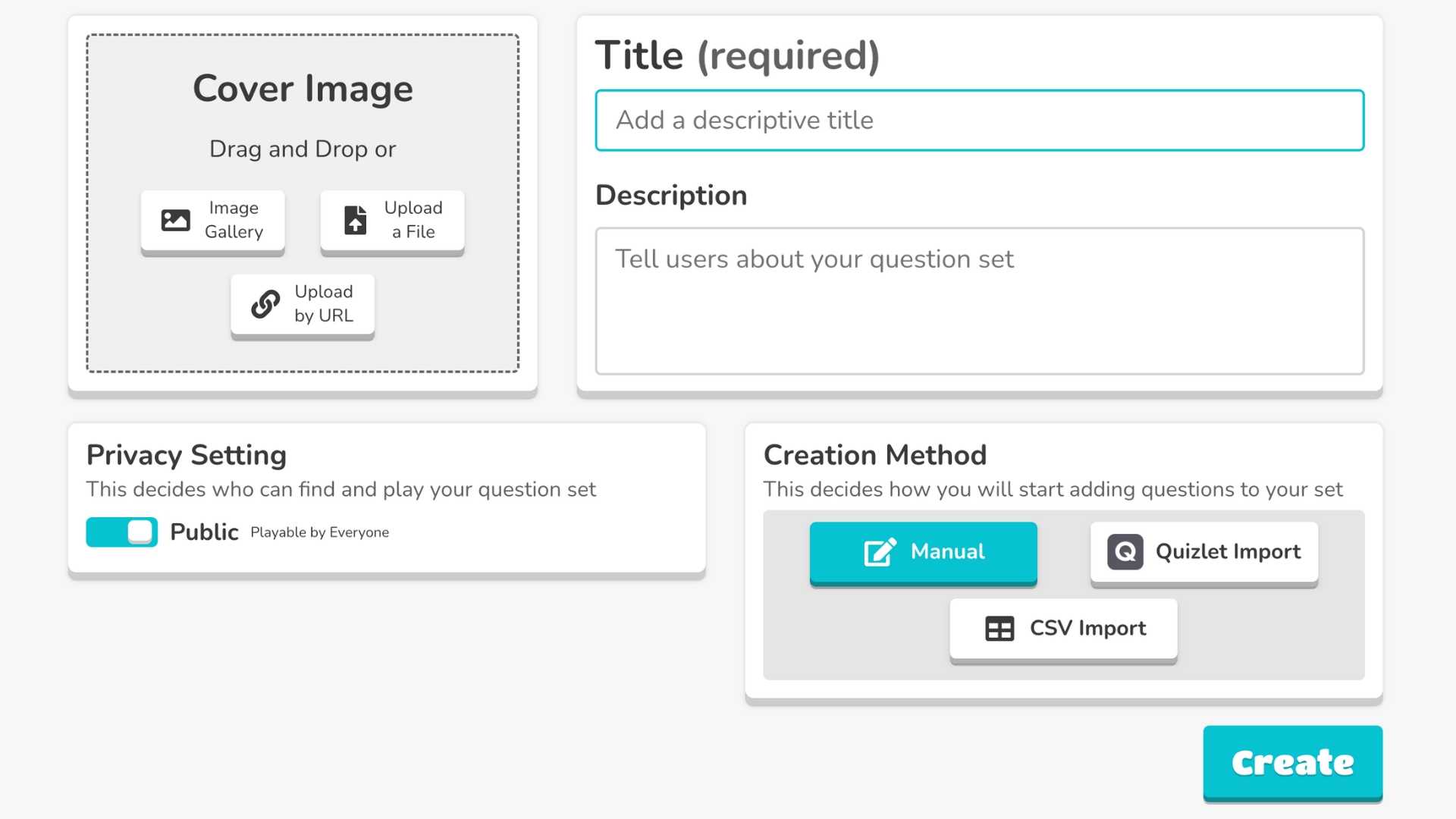
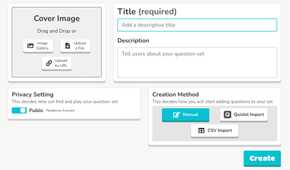
Once you reach this page, you will first have three key things to do. You will need to upload a cover image for your Blooket set. This should be something that either easily identifies your Blooket for your class or is a general image that matches the theme of your set.
Next, you must add a title to your Blooket and a brief description of what is contained in your set. If you would like others to be able to utilize your questions for their classes, ensure the public option is active.
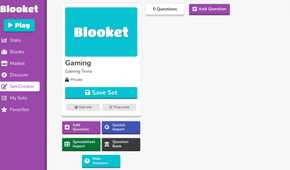
You have several different options for creating your questions. You can either import them through CSV or Quizlet or input each question manually. Once you've selected your options, hit the create button, and your Blooket will be created. You can edit it at any time. If you have opted to manually upload your questions, this will be the time to do so by selecting Add Questions.
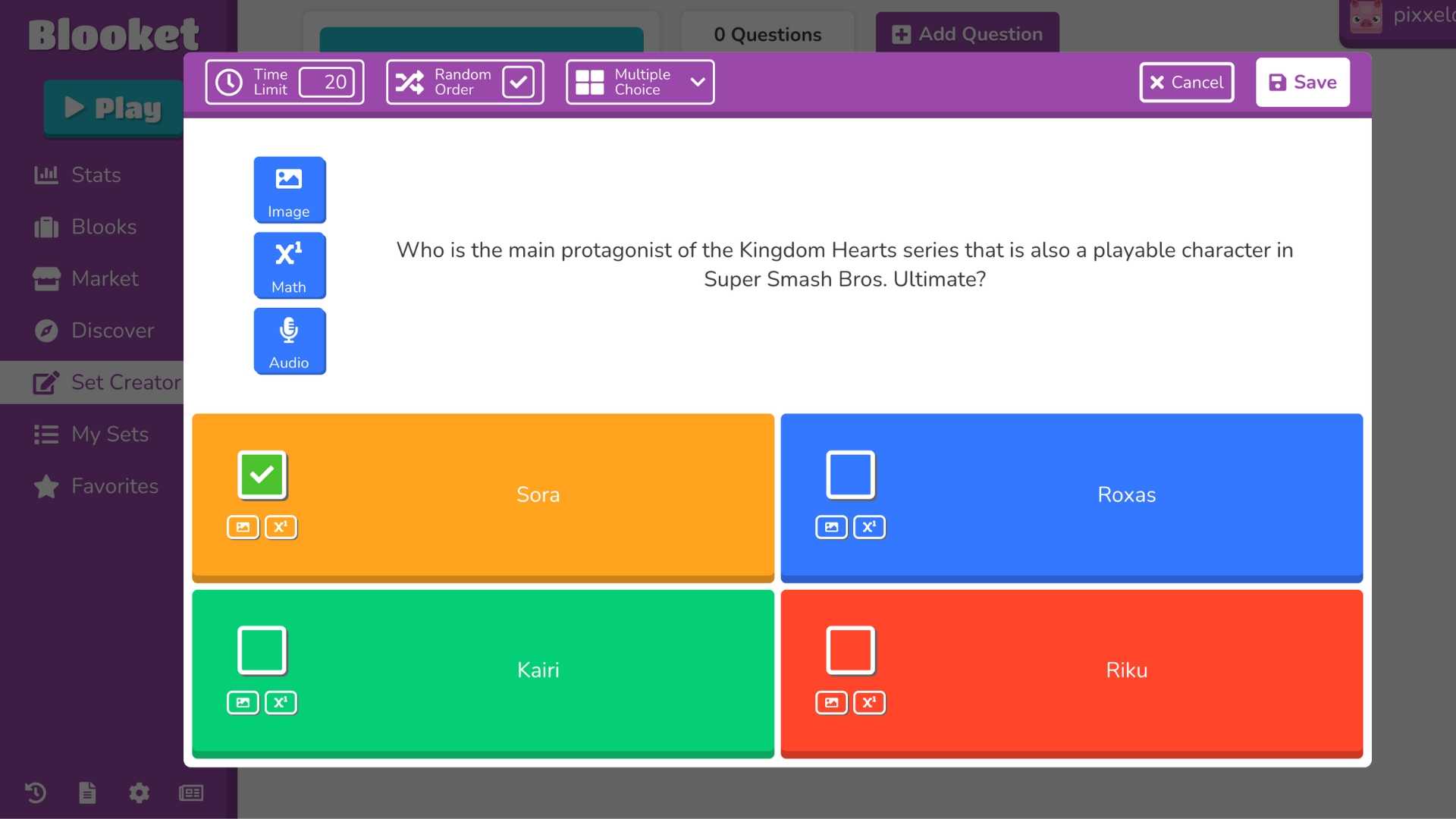
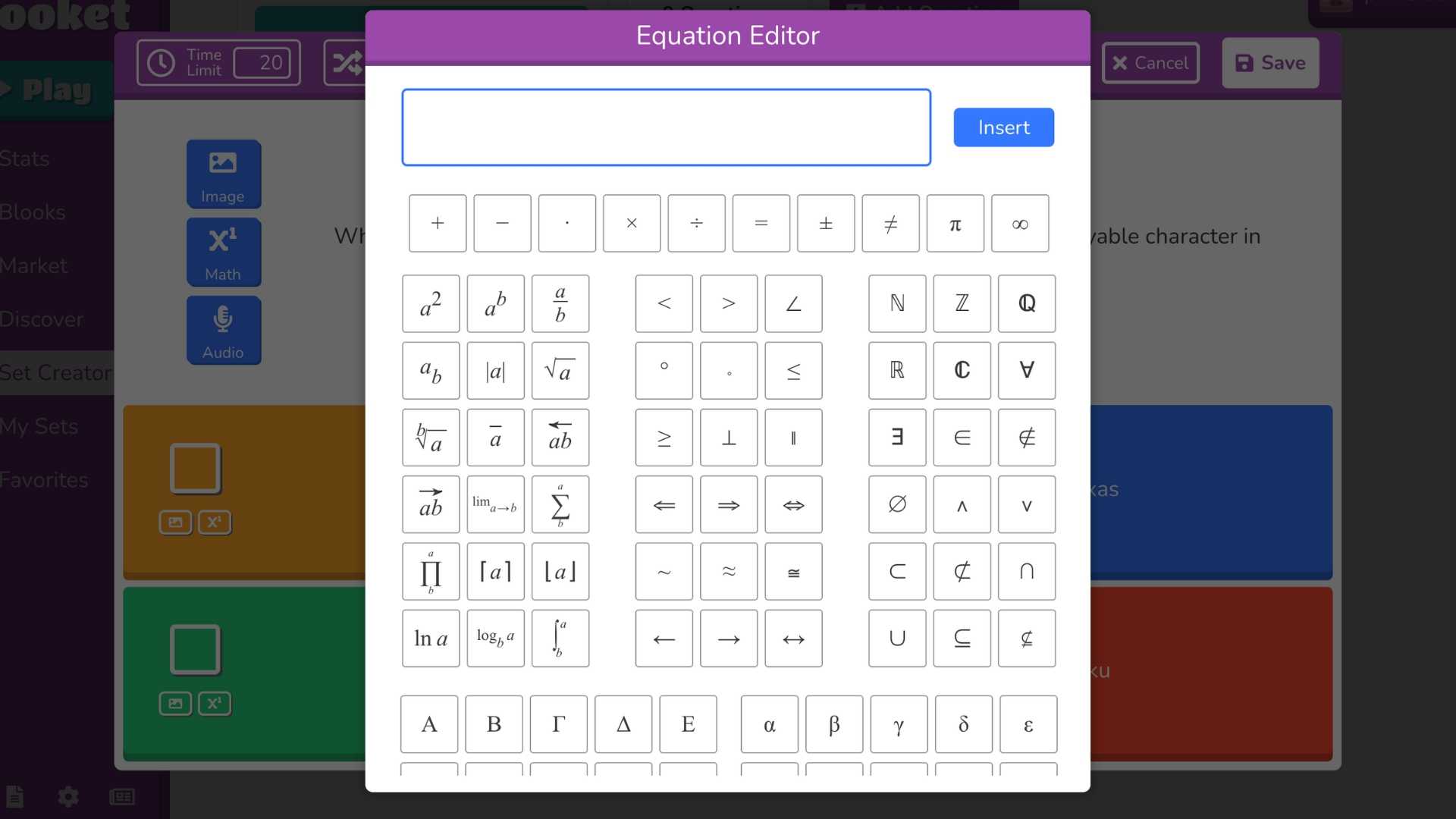
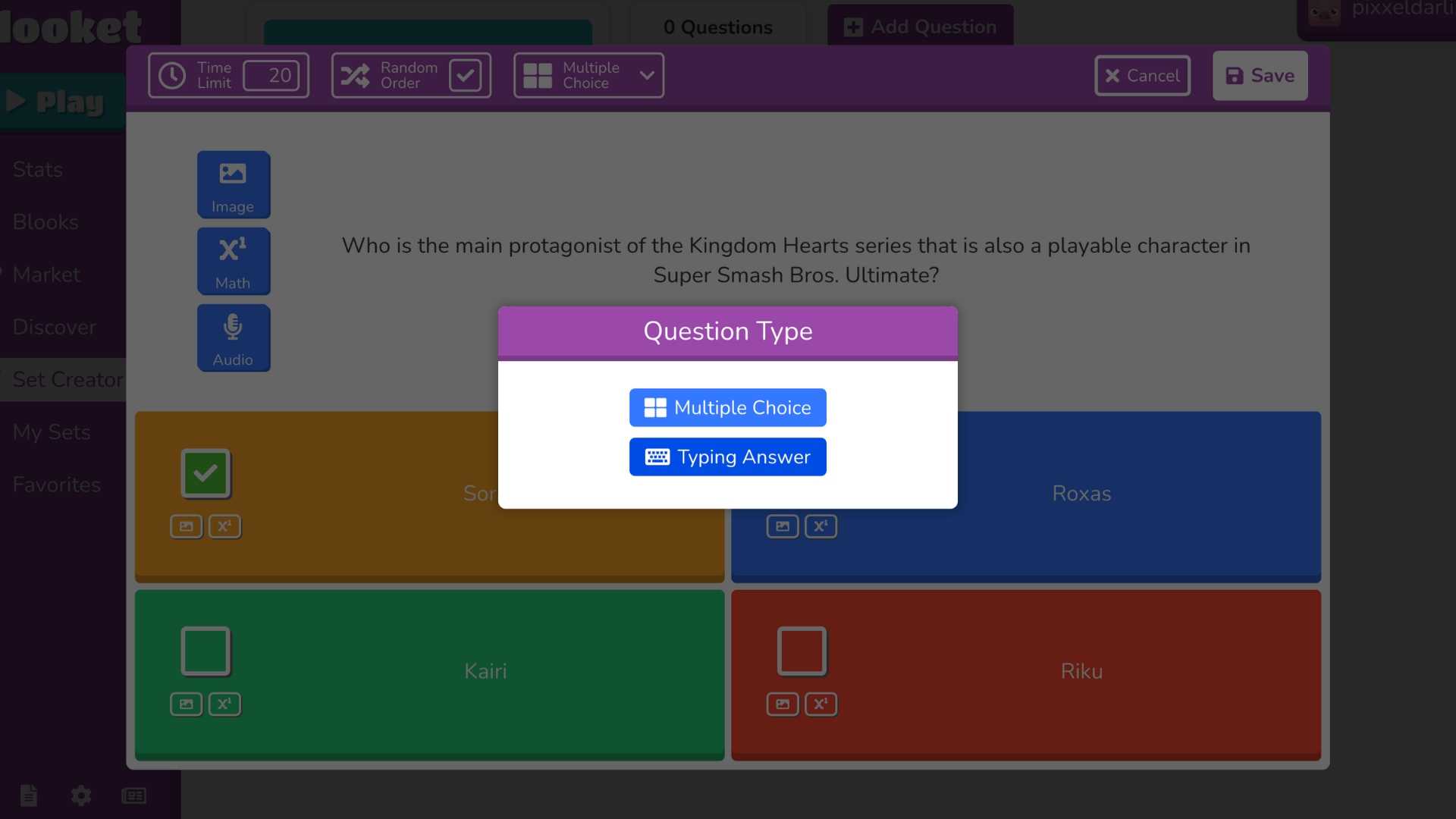
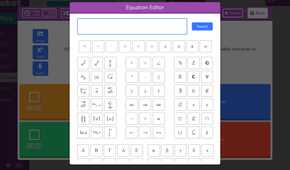
The default option when creating questions will be the standard multiple-choice format with four answer options. You will type in your question exactly as you like, and then you can add four different answers. You will also have the option to use the Math button on the side to input equations, as well as the option to input image or audio references related to your question. Aside from audio, you also have the same options for the answers and don't forget to select the correct answer.
At the top of your question, you will also have a few other options, including setting a time limit for your students to answer as well as randomizing the order in which the answers will populate so you don't need to worry about whether you've put too many correct answers in the same spot.
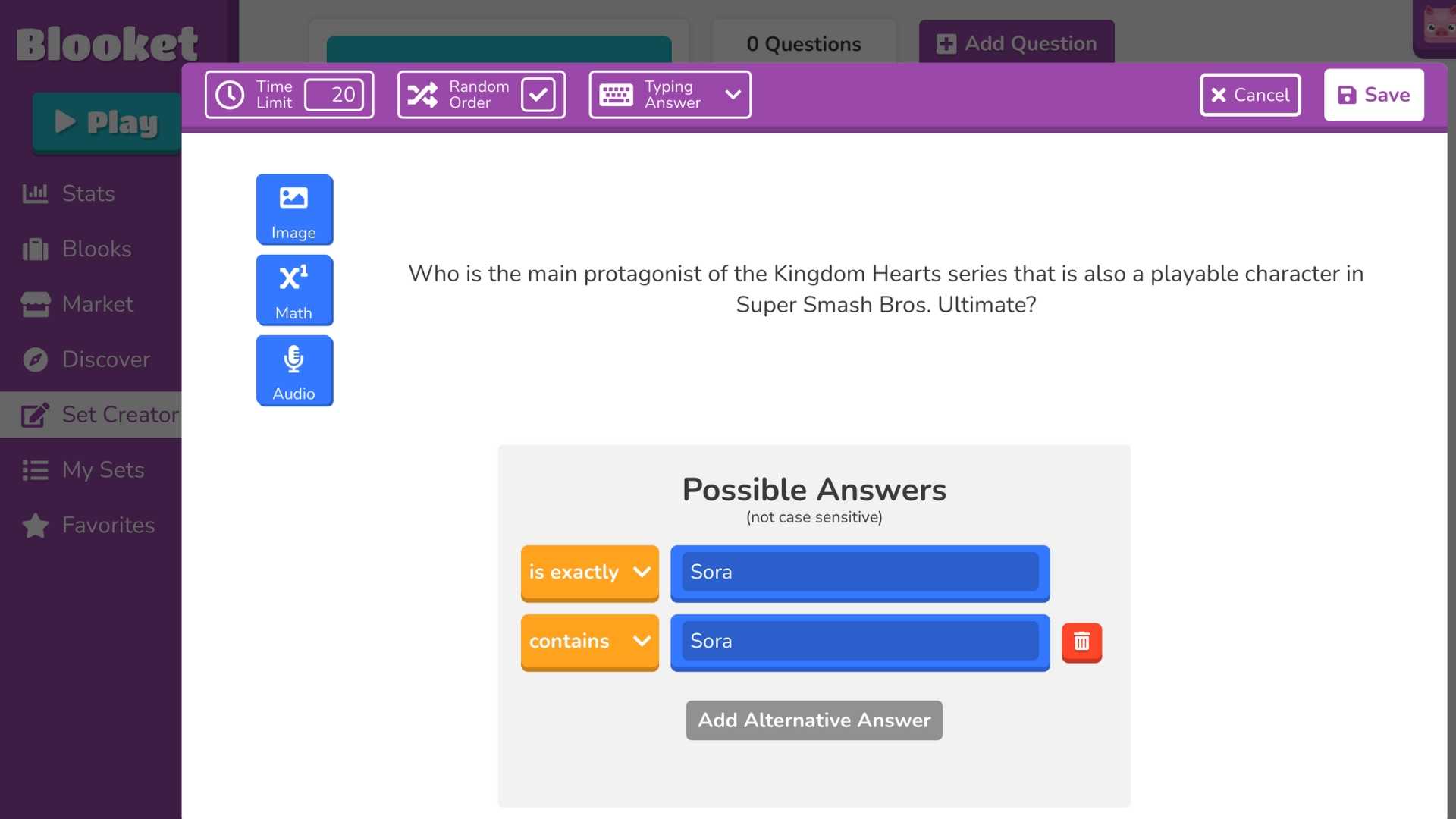
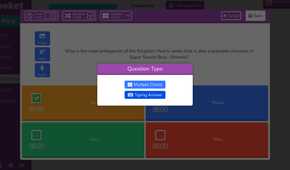
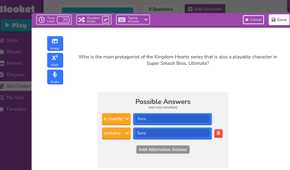
You can also change your answer to have a written response. This will allow you to write the correct answer exactly or as a general statement marked correct for students.
How To Play With Codes
Play With Others Through Codes or Utilize Solo Mode


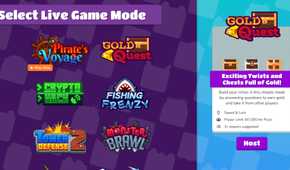
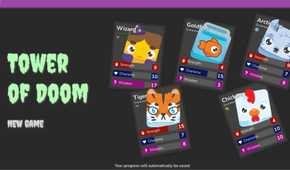
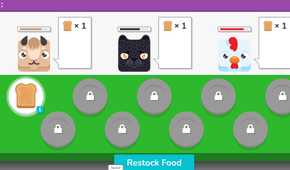
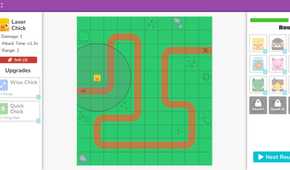
For those looking to enjoy a game of Blooket but perhaps are not currently enrolled in a class utilizing it, there is a way for you to engage in some fun trivia. While many other trivia games will be exclusive to classrooms, public games are also hosted for strangers and shared via codes. There is also the option of playing solo if you want to test your knowledge on a specific subject.
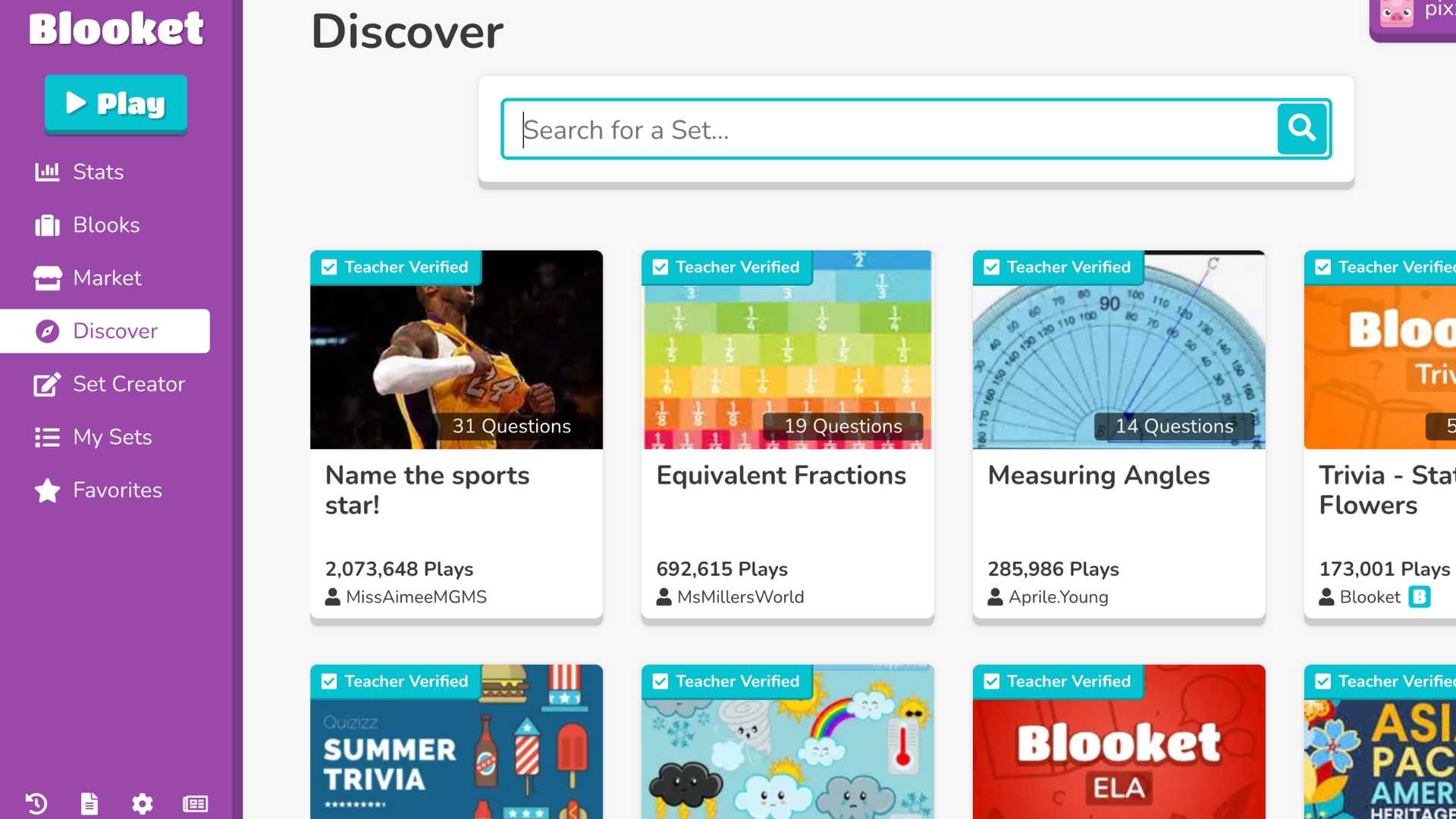
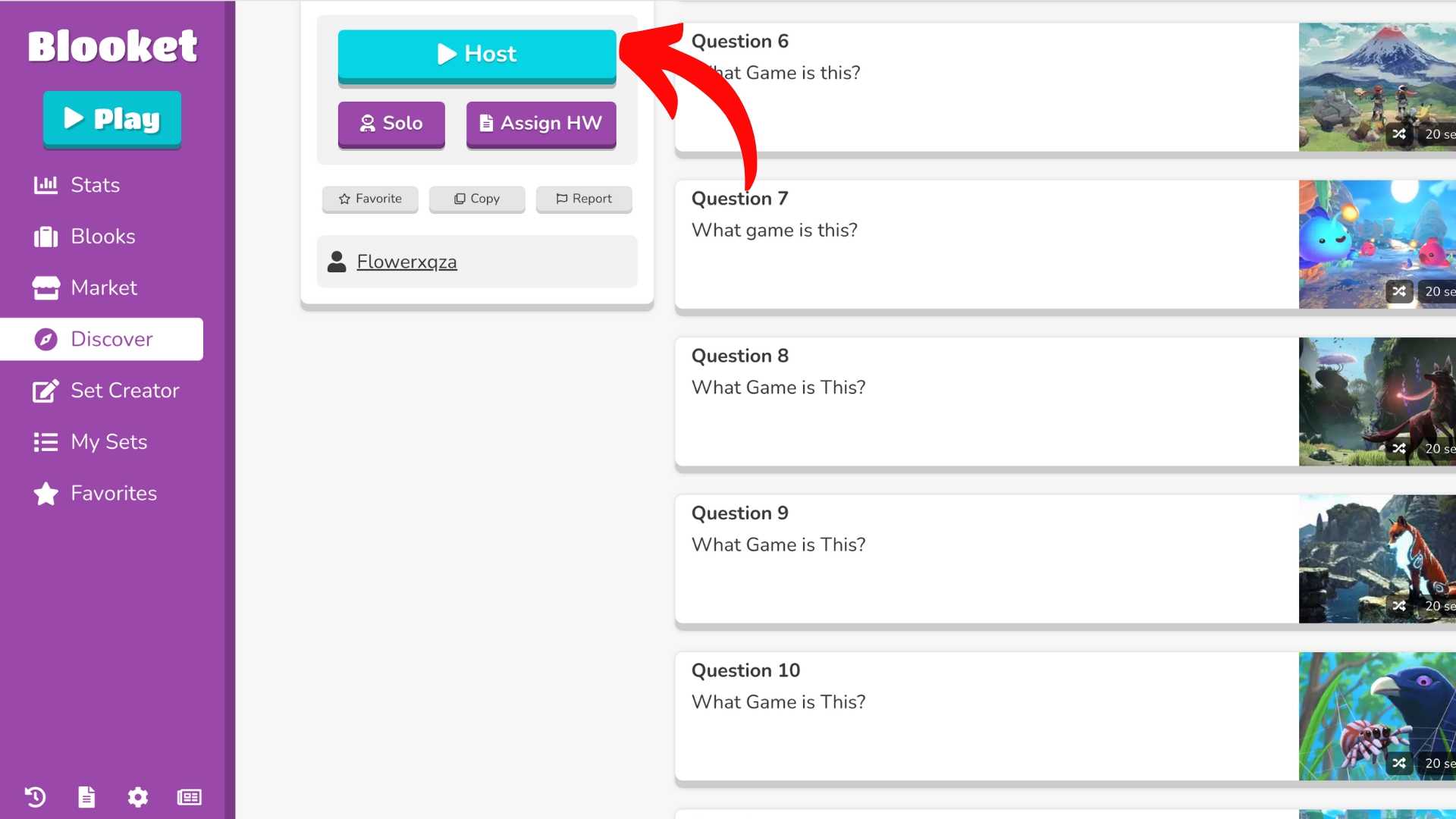
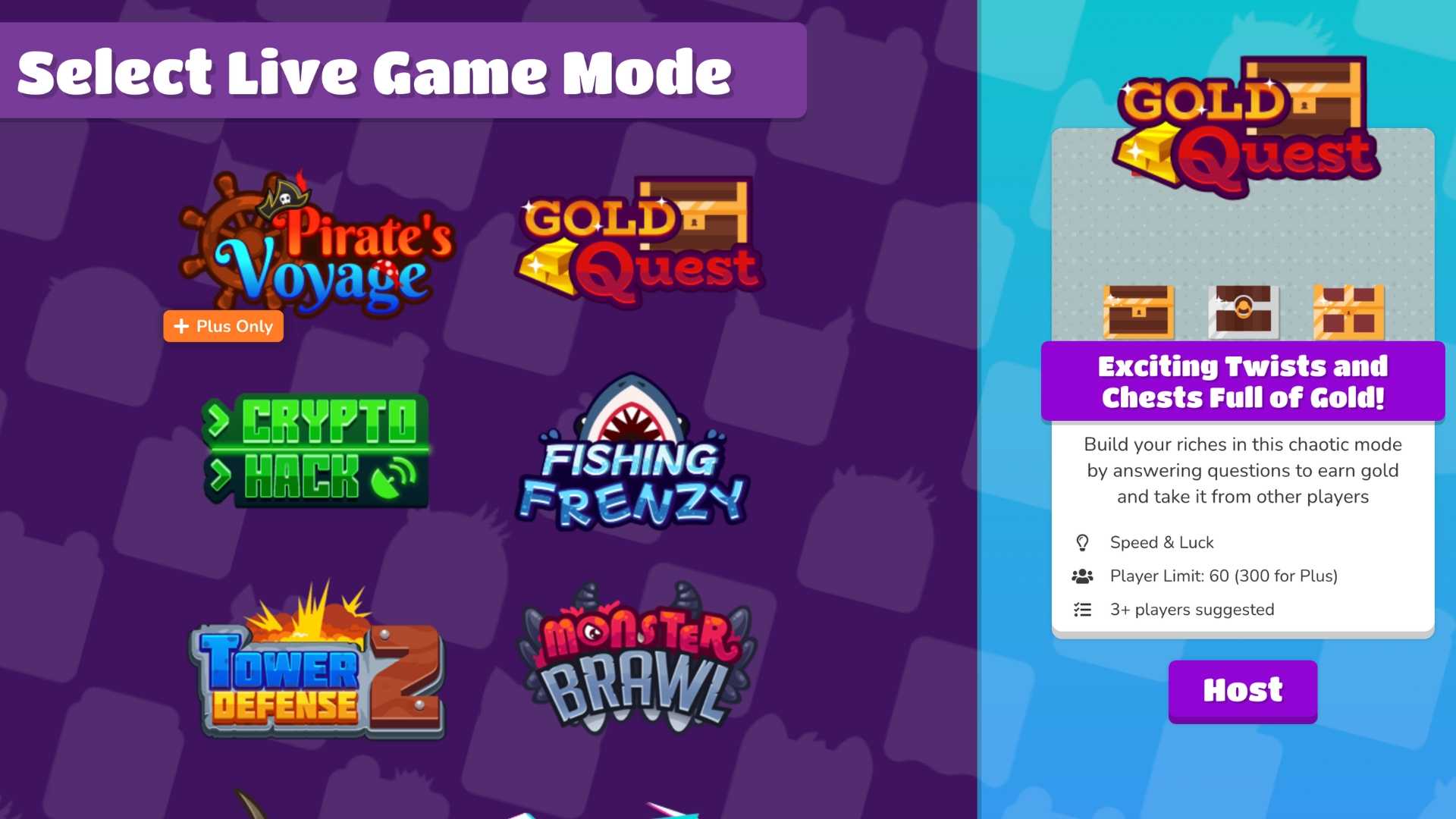
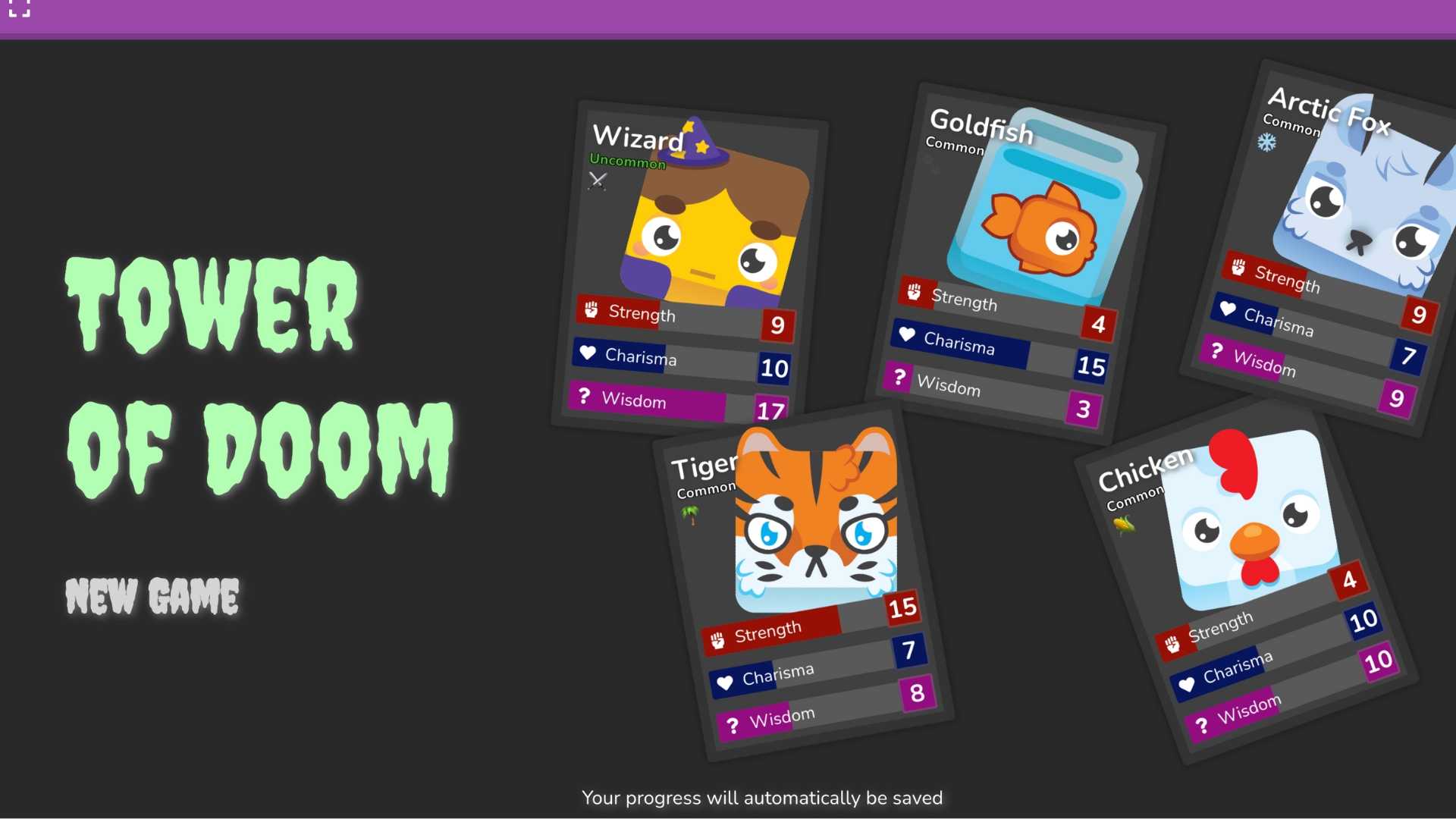
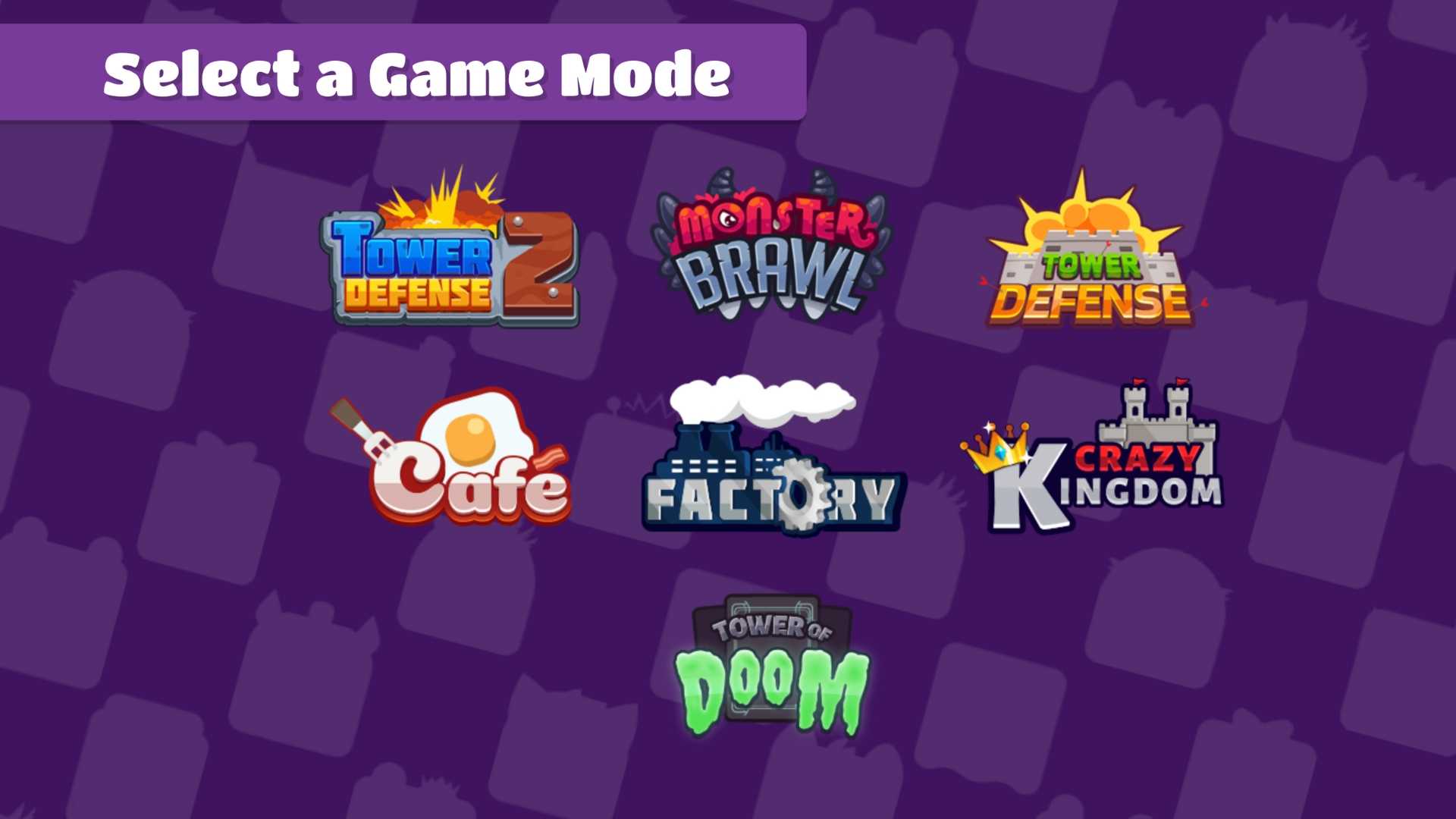
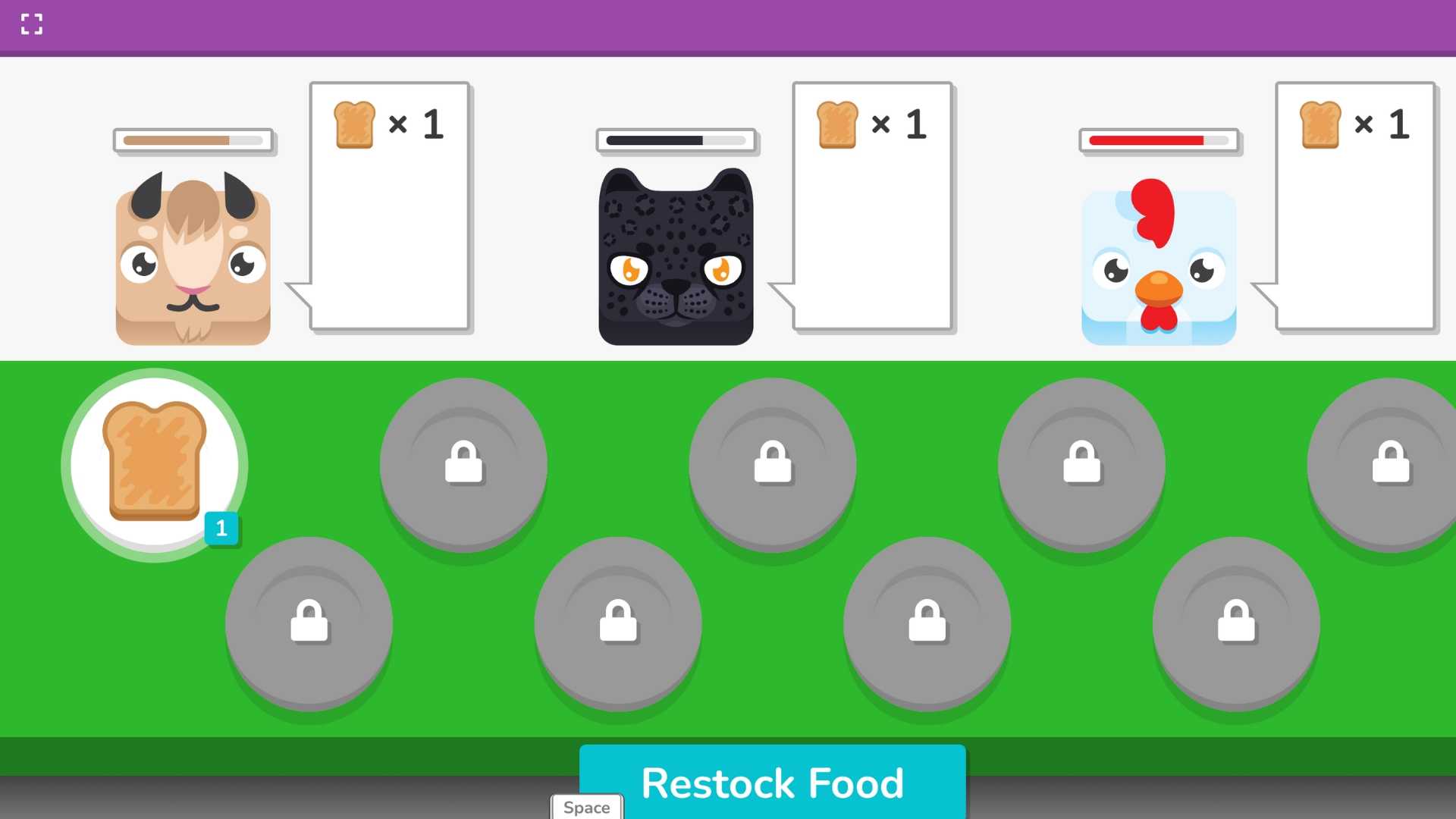
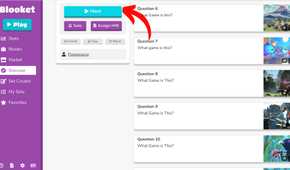
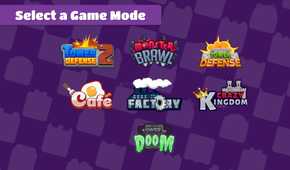
If you would like to host a game for others using a code, you must either pull up your custom Blooket set or search for one in the Discover tab and then select the Host button and pick a game mode. Game modes are entirely up to you. Each will require players to answer questions correctly to progress in their corresponding games.
A classic game mode is also available for those who prefer the traditional question-and-answer leaderboard.
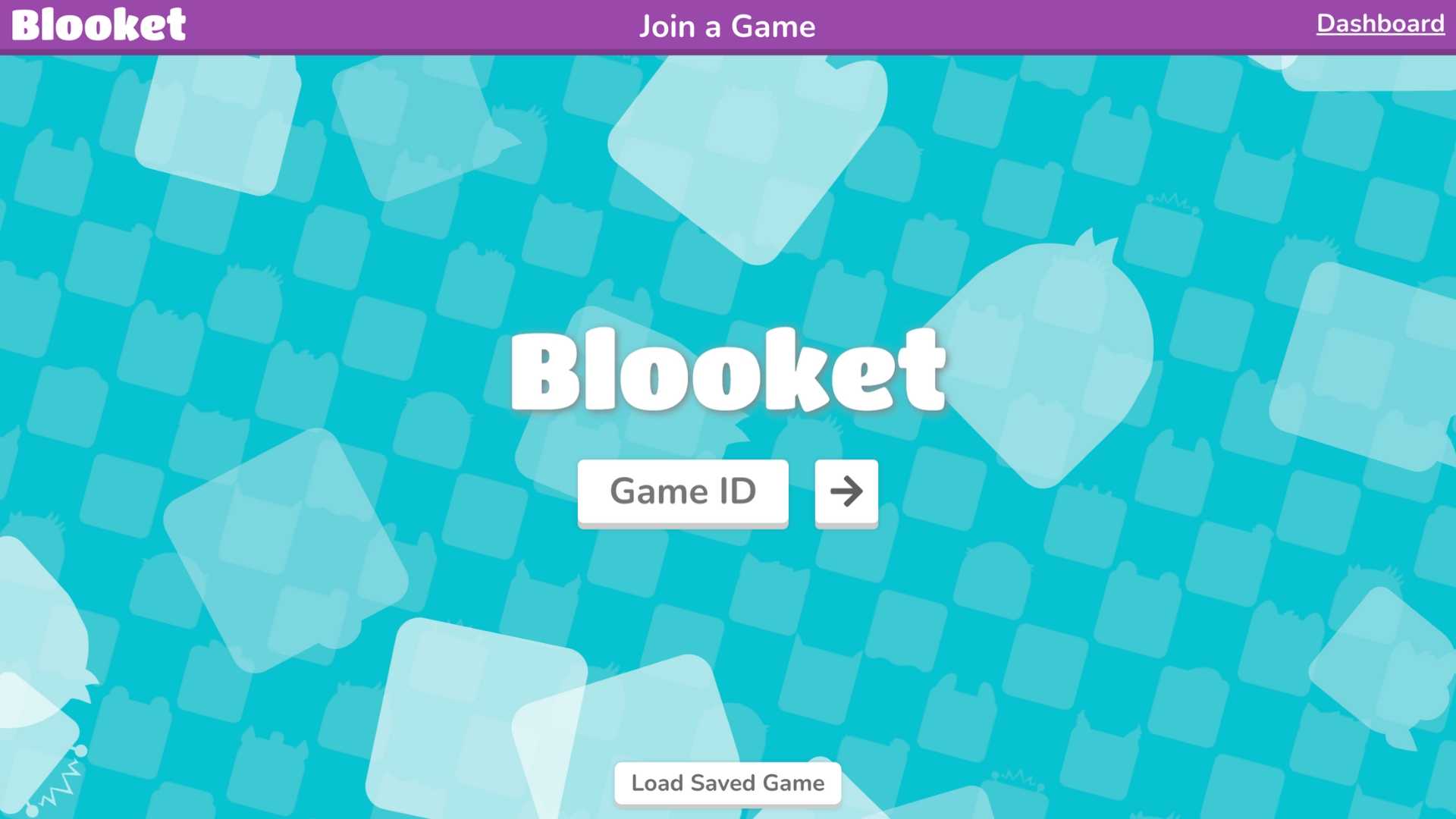
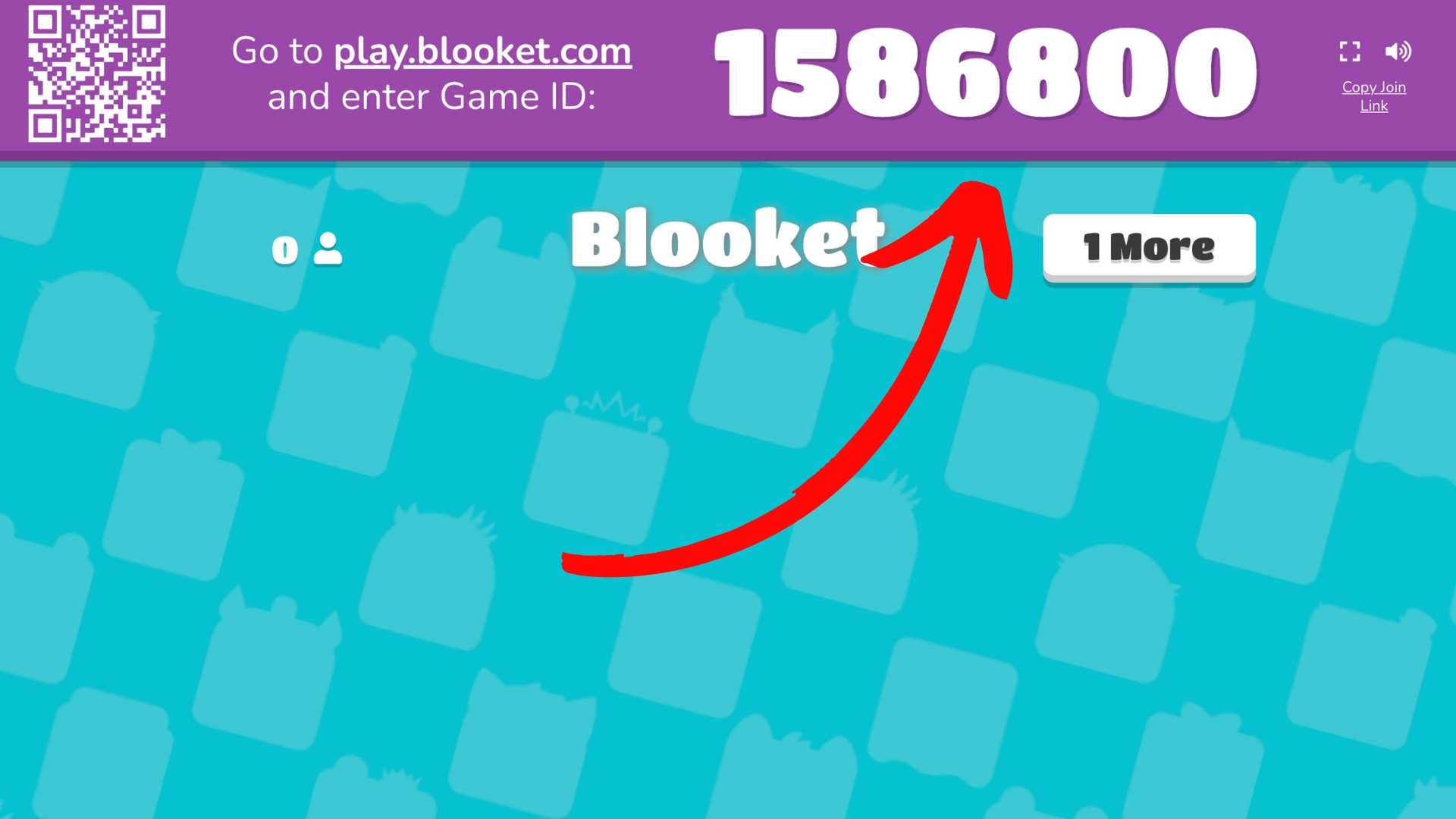
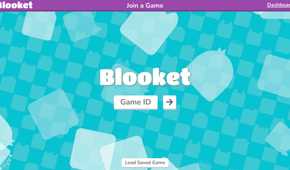
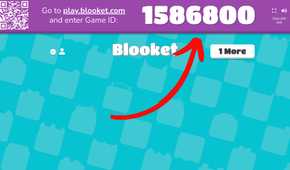
When you select your mode and hit begin, you will be given a Game ID in large numbers at the top of your screen. This is the code you will need to share with others that are looking to join your game.
If you want to play a public game, there is, unfortunately, no way to search for public games happening in real time. Therefore, you must utilize social media channels to find other players actively uploading their Blooket game codes live to play with others or find a group of friends to play with.
