


The Pixel 7 offers more than one way to get around on the device, but how can users go back to the previous screen or page? For years, Android users have been using the three-button navigation method, where they have three on-screen buttons that let them go back to the previous screen, go to the home screen, and view all open apps. That changed in 2017, when Google released gesture navigation with Android 9.0. While some users enjoy the iOS-style gesture navigation system, others still prefer using buttons to get around on their smartphones.
Google's latest smartphone, the Pixel 7, also comes with two navigation options – gestures and three-button navigation. Depending on the method that a user has selected, the way to go back on websites, apps, and other screens changes. Head to Settings, tap on 'System,' select 'Gestures,' and then go to 'System navigation' to check which navigation option is in place. If it's gesture navigation, swipe inwards from either edge of the screen (slightly above the bottom chin) to go back. Going back using the back button is pretty self-explanatory – just tap the back button (arrow icon) to go back to the previous screen.
Use Gestures To Go Back On Pixel 7
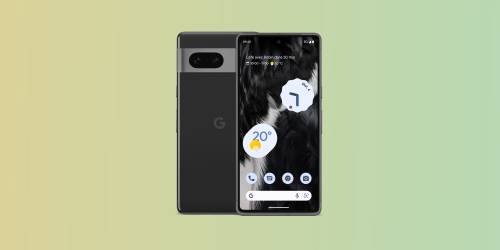
For those new to gesture navigation, here's an example of how it works. If a user is typing an email on the Gmail app, swiping from either side of the screen will go to the inbox, saving the email as a draft. Swiping one more time will bring the user back to the home screen. The back gesture works for all apps, including WhatsApp, Instagram, Telegram, Netflix, and many more. However, in some apps, such as video games, users might not be able to use the swipe gesture to return to the last menu. In this case, they will need to use in-game controls instead.
The swipe-to-return gesture works for websites as well. For example, after reading a news article on Google, Pixel 7 users can swipe from either side of the screen to return to the Google search results page. Other supported gestures include swiping up from the bottom of the screen to go home, and swiping up from the bottom, holding, and letting go to view all open apps.
Another advantage of gesture navigation is that it allows users to switch from one app to another by swiping horizontally on the little line at the bottom of the display. For example, if a user has opened Gmail, YouTube, and the Settings app on their Pixel 7 in that order and is currently in the Settings app, swiping left on the line will go back to the YouTube app. Now, the user can swipe left or right on the bar to switch between all the open apps on the Pixel 7.
Source: Google
